 ParkRound
The rota isn't the hard part - maintaining it is
ExampleWorks has fifteen people who drive to the office and eight parking spaces to share between them. Three of those spaces are at the front of the building; the other five are round the back, behind a separate barrier on a different street.
Today the staff parking rota runs on a spreadsheet. Nobody at ExampleWorks disagrees about what's fair. The rule is simple enough to say out loud: everybody takes turns having a week of parking. No further conditions, no exceptions - which is exactly what makes it sound simple.
Continuous planning. Somebody sits down, looks at who has had a space recently, and fills in eight names in a loop for the next few weeks. It has to happen before people can plan their commute, so it can't slip. Then they post the new rota in the group chat and off everyone goes. On a good day, ten minutes. But every few months there's a new starter or a leaver, and each one means reopening the spreadsheet and working out where to slot them in so that nobody loses a turn and nobody gets two back to back - a failure mode we've written about at length in our guide to adding and removing employees.
Chasing the handbacks. Half the staff work hybrid, and there's always somebody on leave during their allocated week, so a meaningful share of the days come back unused. Those handbacks get announced in the group chat and re-rolled at random among whoever doesn't already have a space. The group did consider something more sophisticated - tracking who had already benefited from the spaces handed back, rather than drawing lots each time - but decided the extra bookkeeping wasn't worth it, especially as it would all land on the same person. So sometimes a handback goes unannounced and the space sits empty while a colleague pays for station parking. Other times it comes so late that the winner of the re-roll has already paid for parking elsewhere, and the space has to be rolled again.
None of that is hard, but all of it is recurring, and it lands on one person.
How a ParkRound parking rota works
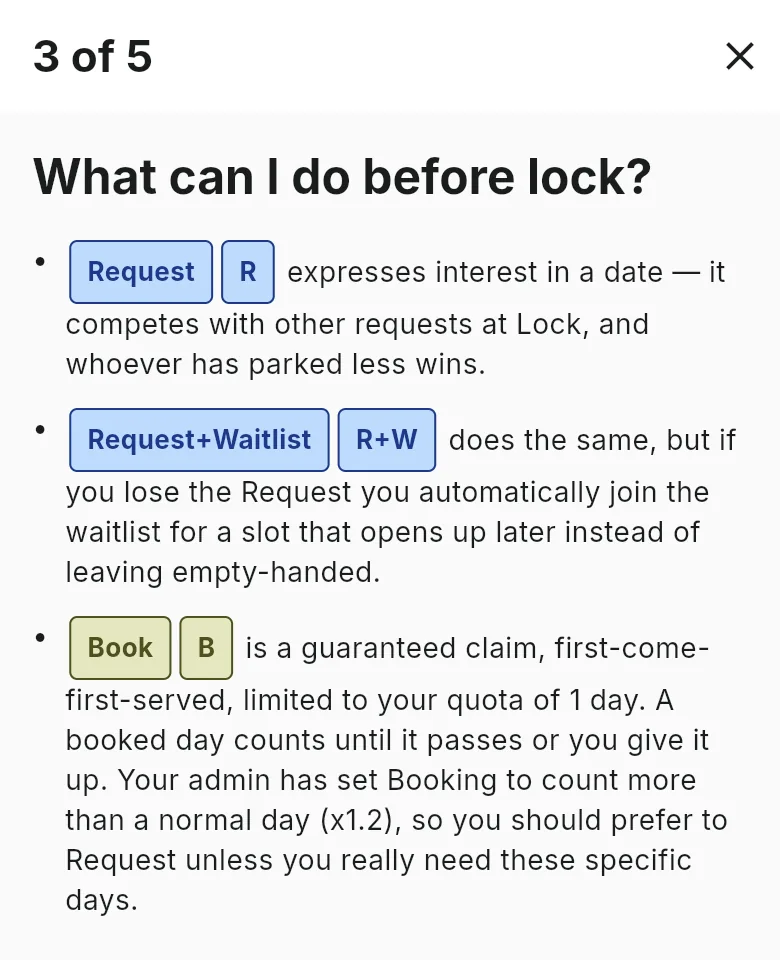
If you haven't used it, one thing needs saying up front: nobody is assigned parking in advance. There is no rota to write. People say which days they want, and ParkRound settles each day on a deadline. The whole product is five words:
- Request - "I'd like this day." Costs nothing, guarantees nothing, and you can request as many days as you like.
- Lock - the deadline. At Lock a date stops taking requests and the spaces are handed out, to whoever has parked the least. You set how far ahead this happens; a week is typical, so on Monday lunchtime everyone learns where they stand for next week.
- Waitlist - if you asked for a day and didn't get it, you can sit on its waitlist. It isn't a queue: when a space frees up it goes to whoever has parked least, so joining late doesn't put you at the back.
- Relinquish - you have a day and don't need it, so you hand it back. It goes to the waitlist immediately. Nobody announces it, nobody re-rolls it.
- Snatch - a space is free on a locked day and nobody's waiting for it, so you just take it.
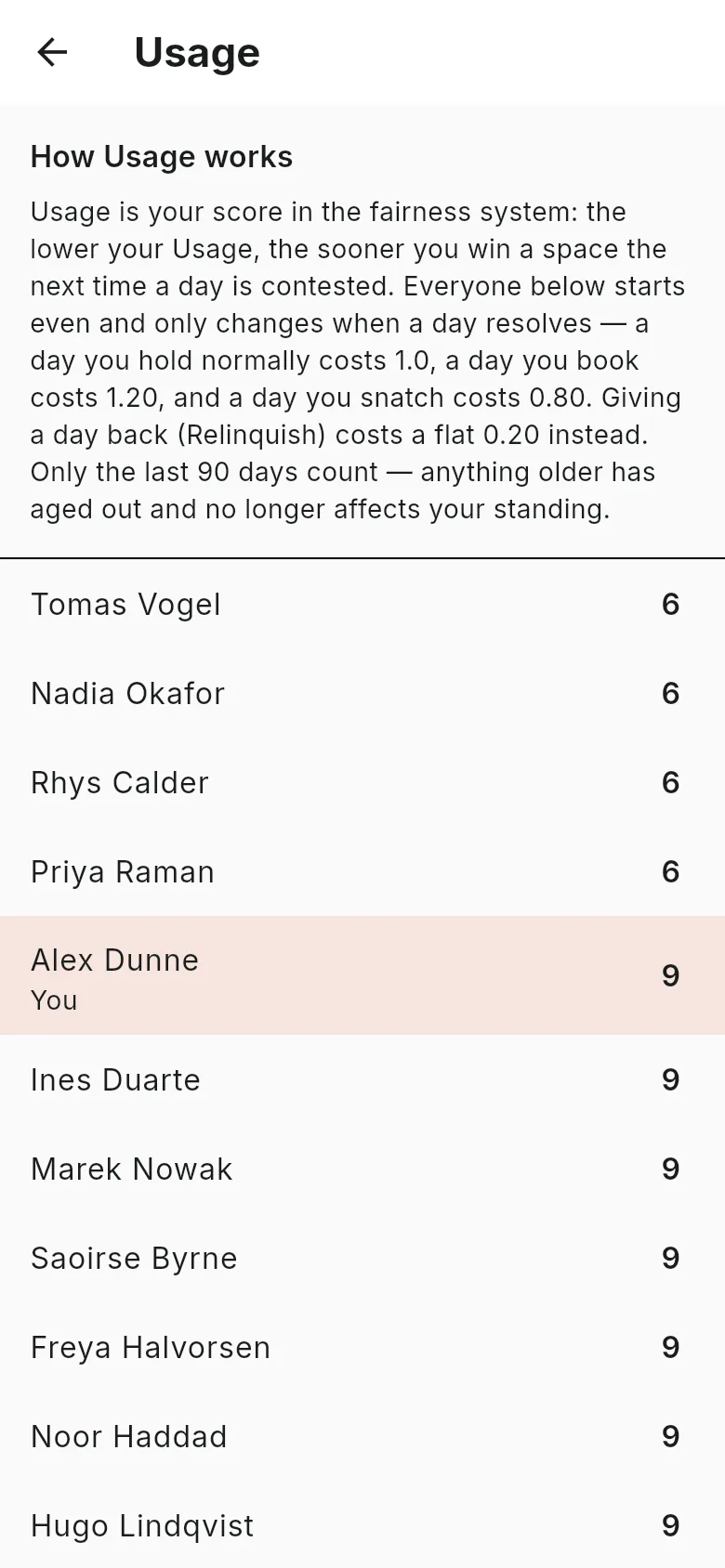
The fairness runs on Usage: a running count of the days you've actually parked. Park less than the group, and you win the next close call. That's the whole of it - there's no seniority, no preference, and no order of turns for anyone to maintain.
Members get this same explanation inside the app, with your Group's real numbers filled in, the first time they sign in.
What we're setting up: eight spaces, fifteen staff
The rest of this guide walks through the actual setup in ParkRound for exactly that situation: one Group, two pools of spaces, fifteen employees, and a parking rotation that runs itself from there.
Setup takes about ten minutes: five questions, a second car park, and a few settings. Then you send each colleague their invite link, and you're done.
Sign in, and on the first screen choose Create a group. That starts a five-question wizard.
Step 1: answer five setup questions
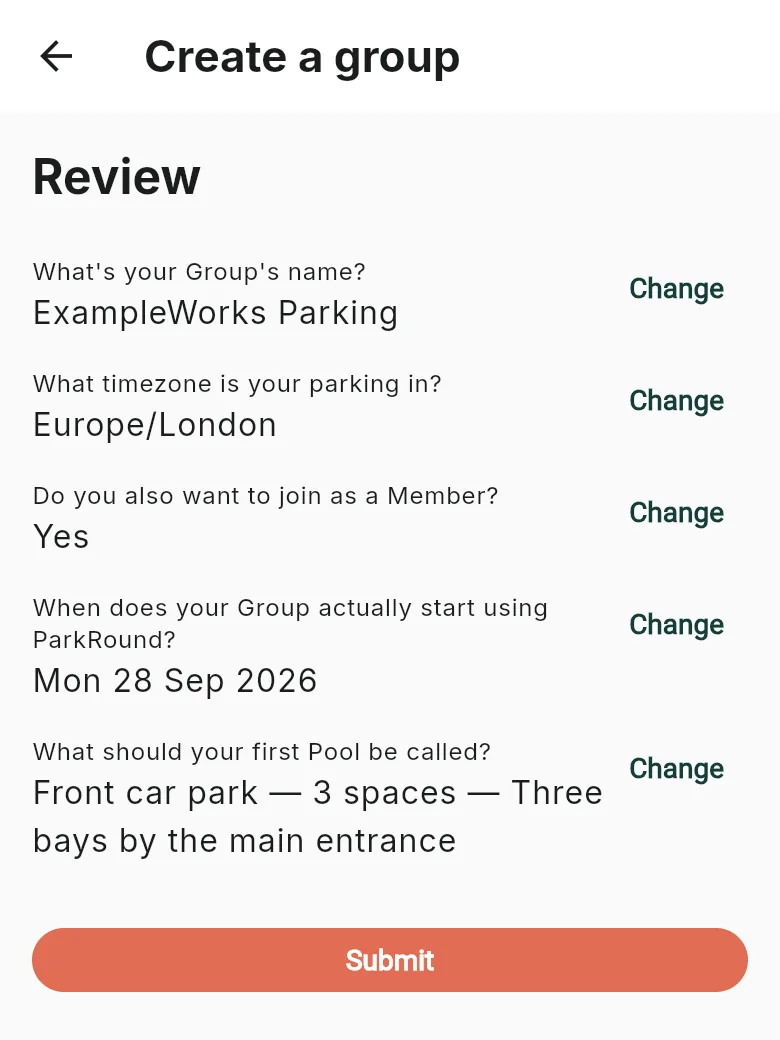
One question per page, and most take a few seconds. Nothing is created until you tap Submit on the last page, so you can go back and change anything.
1. What's your Group's name?
"ExampleWorks Parking". It shows up in every invite message you send, so make it something a new starter will recognise. You can change it later.
2. What timezone is your parking in?
ParkRound detects your device's timezone and offers it. For a single-site workplace that's almost always right.
This is the one answer you can't change later - everything else in setup is editable.
Every deadline in the Group is measured against it, so if you're setting this up while travelling, just pick the car park's timezone instead of your current one.
3. Do you also want to join as a Member?
Creating a Group makes you its Admin. If you also drive to work, switch this on to put yourself in the rotation too.
At ExampleWorks the office manager is one of the fifteen drivers, so the switch goes on and fourteen invites go out. If you're setting this up for other people and don't need a space yourself, leave it off - you'll still see the whole schedule, you just won't be in the draw.
4. When does your Group actually start using ParkRound?
This is the day the spreadsheet stops being the answer and ParkRound starts. Agree it with the group before you set it, and say it plainly in the chat: up to that date the old rota stands, and from that day on nobody parks on anything but ParkRound. A week of both systems running side by side is how two people end up believing they have the same space on Tuesday.
ParkRound holds off allocating anything until that date, so the three people who sign in first don't get a head start on the other eleven. Everyone who joins before then starts at zero Usage, level with everyone else, and the first allocation includes the whole group. The wizard suggests next Monday, which is usually plenty of time.
5. What should your first Pool be called?
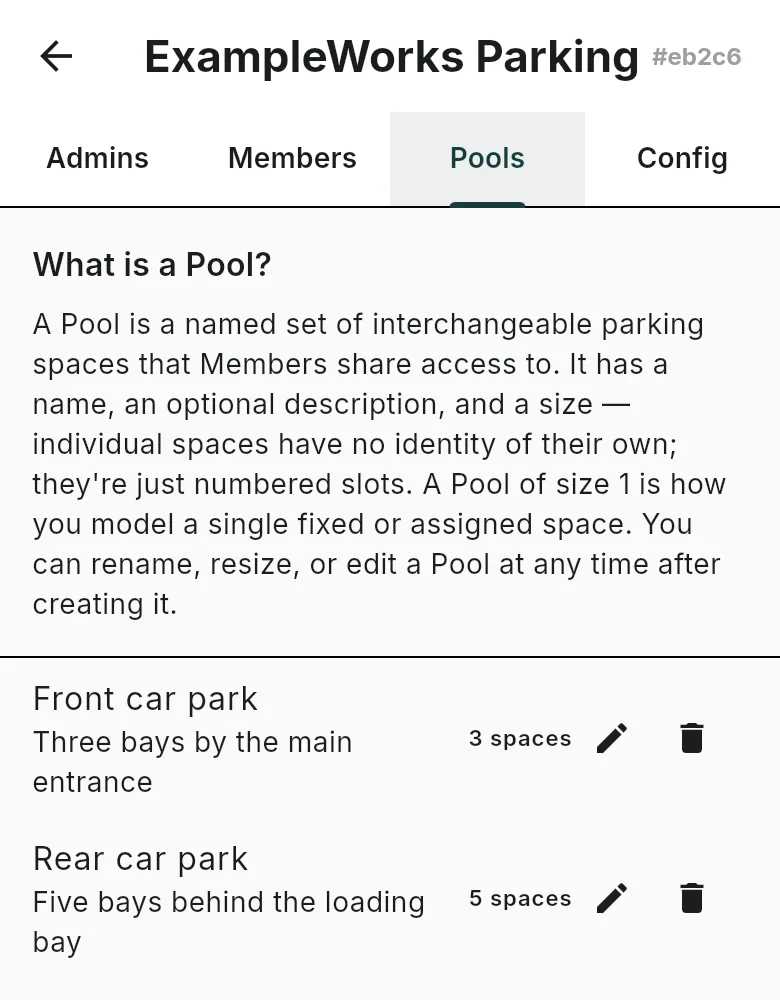
A pool is a named set of interchangeable spaces with a count. The wizard pre-fills "Main Pool" with one space; change it to match your first car park.
Enter Front car park, with 3 spaces. Use the description for directions - "Three bays by the main entrance" - because that is what a new starter actually needs. The five at the back get added in a moment - the wizard only asks for the first one.
Then you land on a Review page. Nothing has been created yet; every answer has a Change link, and Submit is the button that actually makes the Group.
Step 2: add the second car park
From the schedule screen, open the menu and choose Group settings, then the Pools tab. Add a second pool: Rear car park, 5 spaces, described as "Five bays behind the loading bay". That's the full eight.
Pool names are there to tell people where to go. Nothing in ParkRound ranks the front car park above the rear one. Members cannot express a preference between pools, and there's no setting anywhere that ties a person to one. A pool exists for exactly one reason: so that when you get a space, the app can tell you which entrance to aim for.
That one word saves the five-minute loop round the block when someone drives to the front barrier and finds all three bays taken.
The same logic scales down to individual bays. If your lot has numbered spaces - say A15 and A62 scattered near the door, and B1 to B4 together at the far end - that's three pools: one of size 1, one of size 1, and one of size 4, named for the bays. ParkRound doesn't track individual spaces inside a pool, so the bay number has to live in the pool name. A pool of size 1 is how you model a single fixed bay.
Step 3: invite your staff
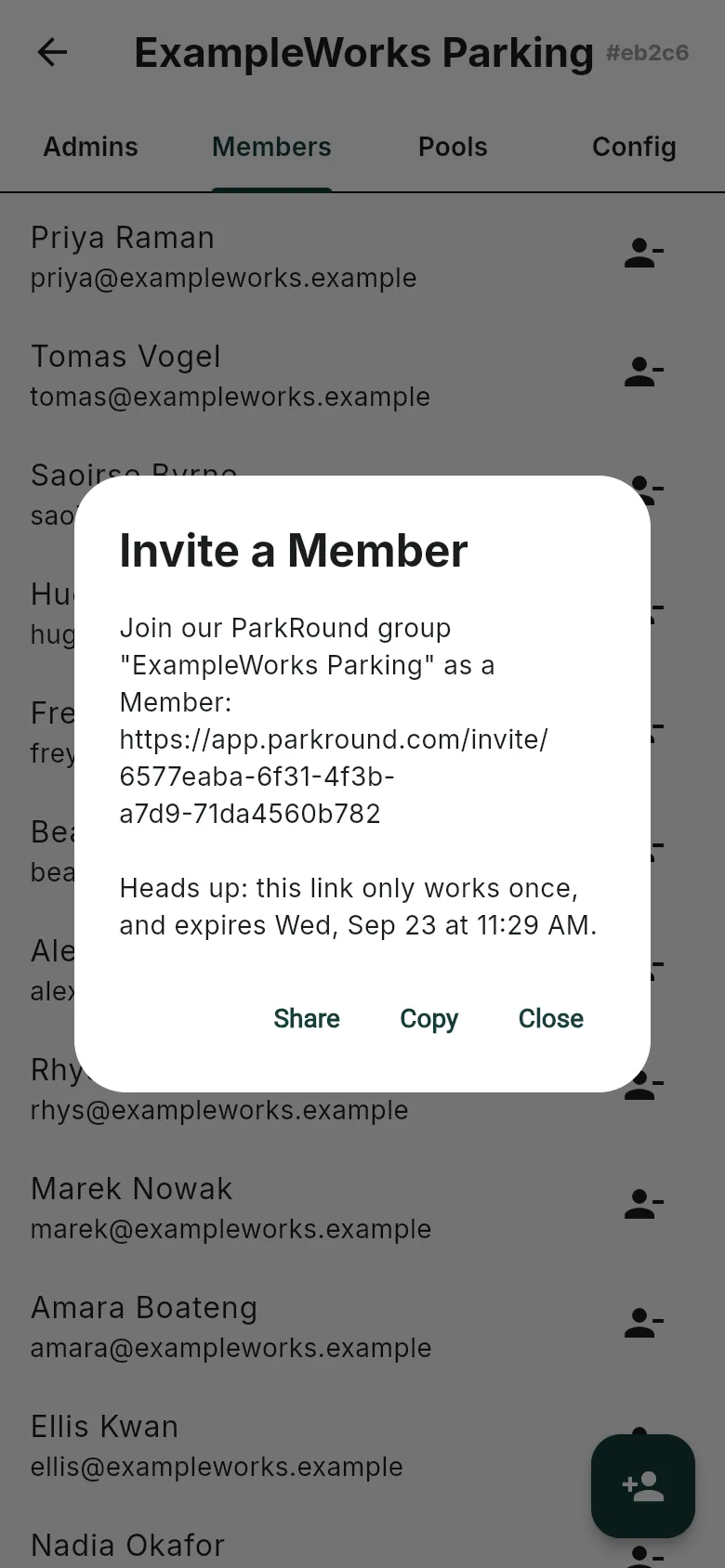
Group settings → Members tab → the add-person button. ParkRound generates a link, copies it to your clipboard, and gives you a ready-to-send message you can paste into chat or email.
Each link is personal to one colleague and stays valid for 48 hours, so it can't be forwarded around the office. Send it however your team already talks - chat, email, a direct message. The easiest approach is to do them all in one go on a day people are in, so everyone's joined before the launch date.
If you want a second Admin - and with fifteen people, you should, so that annual leave doesn't strand the Group - invite them from the Admins tab instead. If they also park, send them a Member invite as well. Admins have full control of the Group, so pick someone you'd trust with the spreadsheet today.
Step 4: choose the rota settings that matter
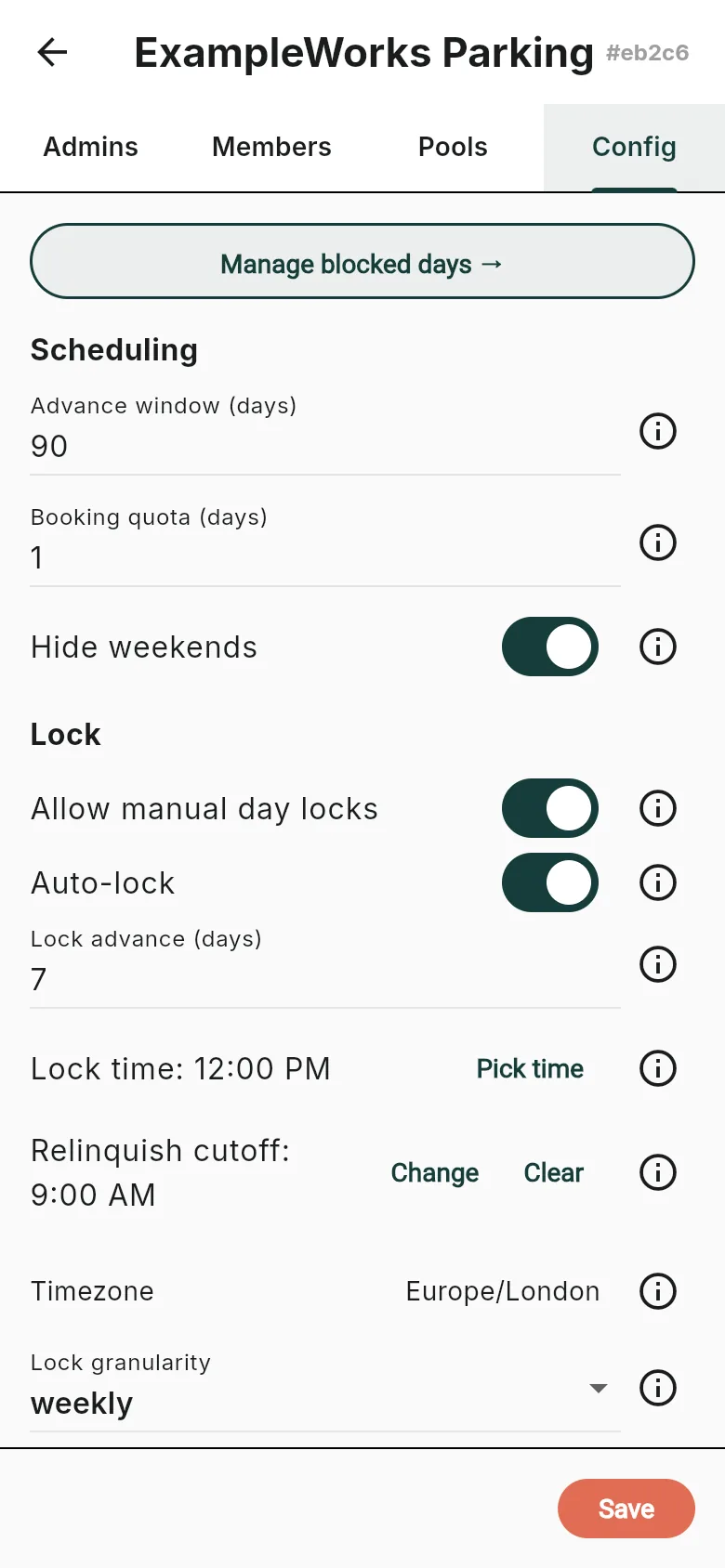
Group settings → Config holds everything else, and almost all of it ships at sensible defaults. Here are the four decisions that genuinely matter for a group like ExampleWorks, and one line each on the rest.
Lock advance and granularity - when people find out. Lock is the moment requests turn into actual allocations. Out of the box a Group locks weekly, about a week ahead, at midday. So on Monday lunchtime, next Monday-to-Sunday gets settled in one go and everyone can see where they stand.
Weekly locking does not mean weekly commitment. People still request individual days - a Tuesday-and-Thursday hybrid worker requests exactly those two, and at Monday midday they find out whether they got none, one or both. The week is only the unit in which the decision is made. That's the real benefit of weekly granularity: one check of the app a week and you know where you stand. Switch to daily and people have to look every day, as each new date settles on its own.
Booking quota - the escape hatch. Booking lets someone take a specific day outright, without waiting for the allocation. The quota is how many days a person can hold booked at any one time, and a Group ships with it at 0 - no booking at all, every space handed out at Lock to whoever has parked least.
It's worth turning on anyway, because now and then someone genuinely has to be in on a particular Thursday. A booking skips the queue, but only for the moment: it still counts towards their Usage, so the fairness catches up with them afterwards. Think of it as borrowing from your future turn rather than jumping ahead of anyone. To keep that honest, a booked day should cost a little more than an allocated one - the default weight of 1.2, so 20% more, is right for most groups.
Keep the quota small - one or two days is plenty - so booking stays an occasional exception rather than a way round the rotation. ExampleWorks allows one booked day, and will see how it gets used before allowing more.
Relinquish cutoff - for the genuinely late changes. When someone doesn't need their day, they relinquish it, and it goes straight back into circulation for anyone waiting on that date. No announcement, no re-roll, no one deciding who deserves it. Relinquishing is always available - there's no switch to find.
Notice, though, how little it has to do. The spreadsheet's handback problem existed because days were handed out blindly: you got your week whether or not you were in that week, so a steady stream of unwanted days came back and had to be re-rolled. Nobody is given a day they didn't ask for here, so that churn simply doesn't arise. What's left is the genuine late change - the client visit that moves, the child who gets sick - and relinquishing is there to catch those. It's the exception, not a weekly routine.
Relinquishing isn't quite free, though, and shouldn't be. Handing a day back costs 0.2 of a day in Usage by default, so you get roughly 80% of it credited back rather than all of it - and nothing at all if you end up on that same day again anyway, when the penalty is waived. That small number is doing real work. Without it, the cheapest strategy in the system would be to grab every day going and drop whatever you turn out not to need, and the rotation would belong to whoever was most willing to over-ask. With it, hoarding is very slightly worse than asking honestly, which is all it has to be: 80% back is still clearly worth taking if you genuinely can't use a day, so nobody sits on a space they don't want.
The cutoff itself is an optional wall-clock time on the parking day itself after which relinquishing stops. It exists so nobody drops a space at 4pm and takes credit for a day they'd already used up. Something like 9am is sensible. Snatch and the waitlist keep running past the cutoff, so a late-released space still finds a taker.
Blocked days - your closures and bank holidays. There's a Manage blocked days button at the top of the Config tab. Blocking a date removes it from the rotation for everyone, so nobody's fair-share counter moves on a day the office was shut. Add the public holidays and the Christmas closure while you're here; it's five minutes now and a support question avoided later.
Hide weekends is on by default, which is right unless your site actually operates on Saturdays.
Everything below that - the lookback window, how a new joiner's starting usage is calculated, the booking and snatch weights, the whole-week preference - are fairness dials. They ship at sensible values, they interact with each other, and tuning them before you've seen a single real week of allocations is guesswork. Leave them alone. Come back in a month if something feels off, and change one at a time.
What each employee does on day one
Your fourteen colleagues click their link, sign in, and get a short walkthrough of how requesting and Lock work. Then they land on the schedule, and there are exactly two things worth them setting up.
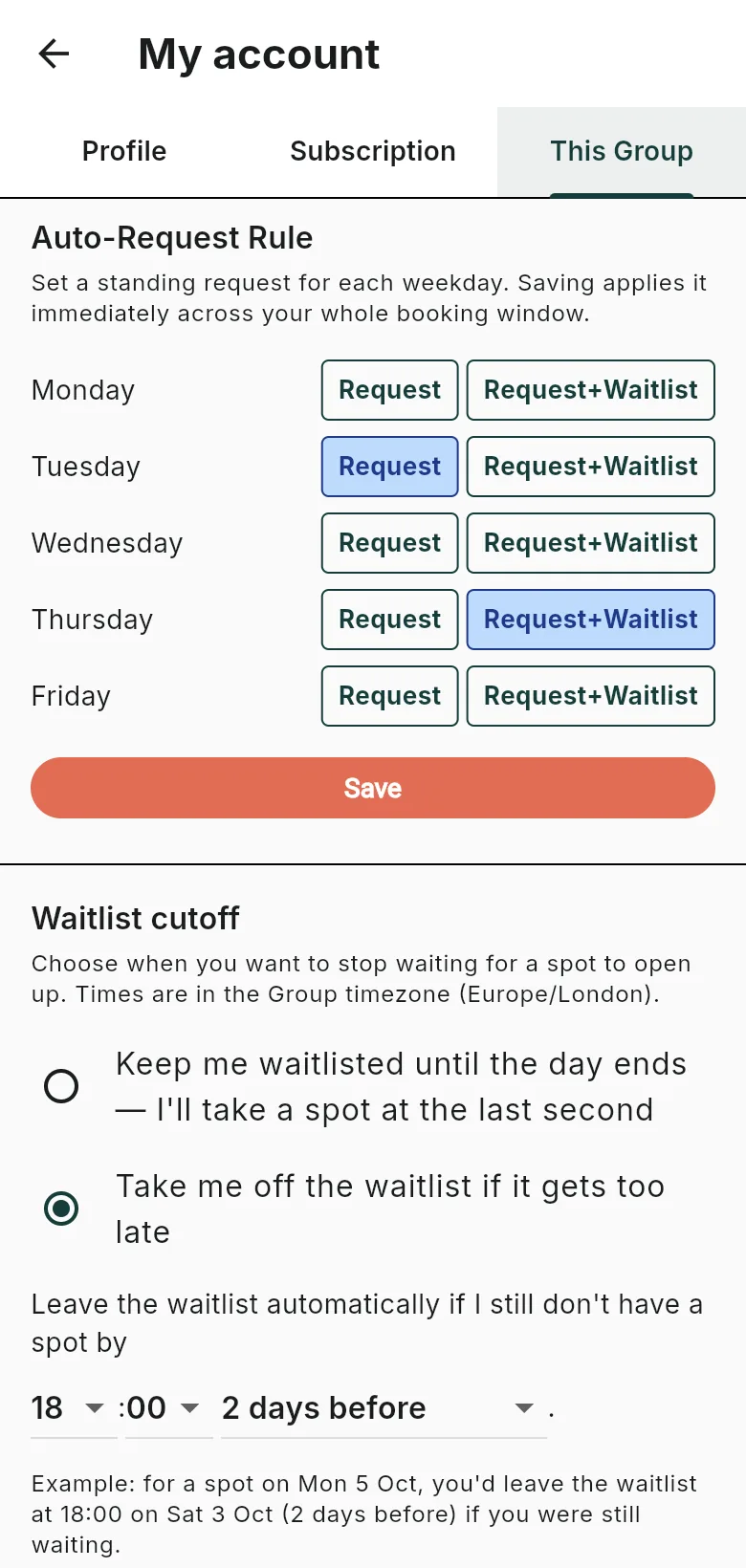
Auto-request rules. Under My account → This Group, each person sets a standing instruction per weekday: off, Request, or Request + Waitlist. This is the real answer for anyone who drives in five days a week - set all five weekdays to Request once, and they never open the app again except to hand a day back. The rota still allocates fairly; they've simply told it their default answer in advance.
Hybrid staff use it the same way for their fixed days. Someone in on Tuesdays and Thursdays sets those two to Request and leaves the rest off, then requests an extra Wednesday by hand in the weeks they need one.
Automatic waitlist removal. Off by default, and worth turning on. It takes you off a date's waitlist a set number of days before, at a set time - "2 days before, at 6pm" - so you stop being offered a space at a point where you've already made other arrangements. It's the difference between a waitlist that's useful and one people learn to ignore.
Point people at those two settings in the same message as the invite link. Both take under a minute, and they're what turns ParkRound from a thing you check into a thing that runs.
Running the parking rota: the admin's week now
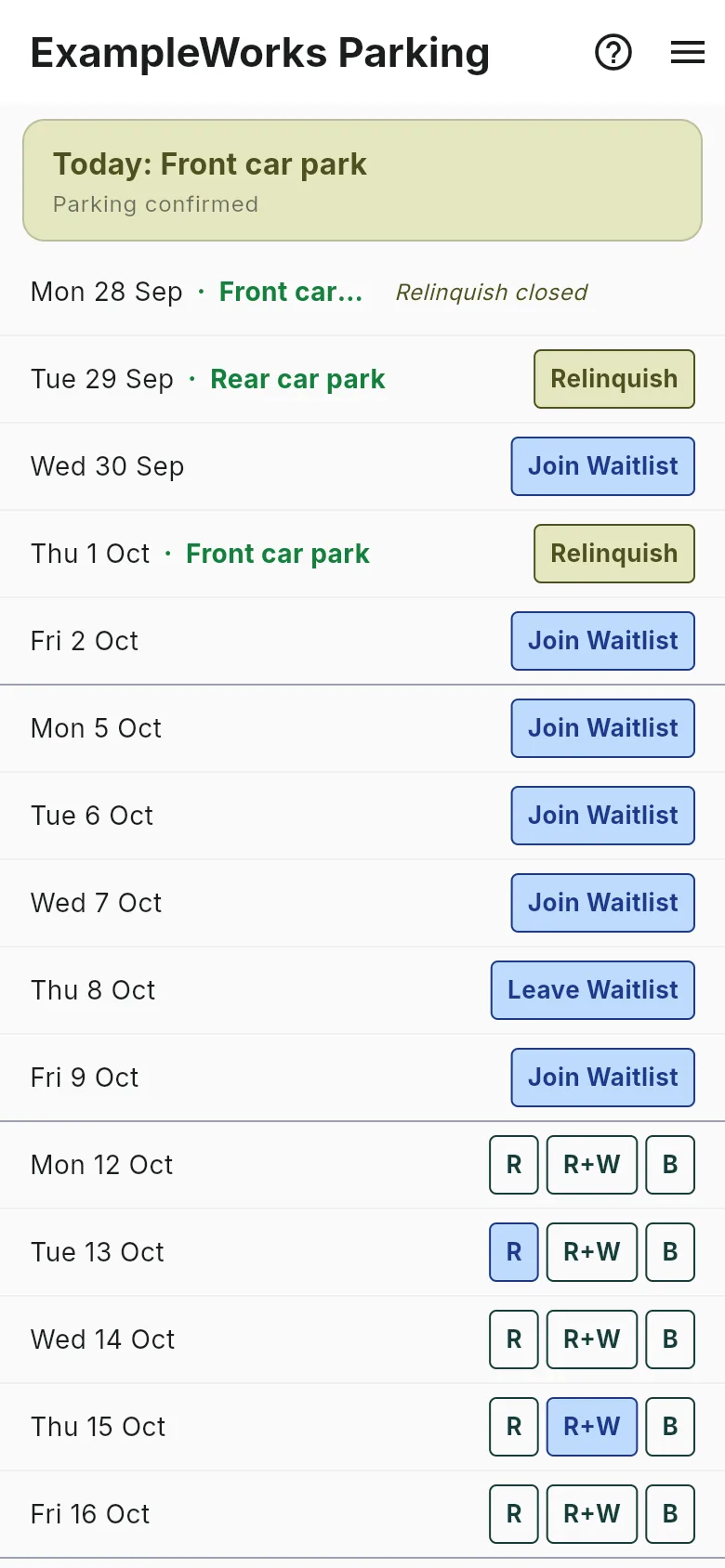
This is what Alex sees after a Monday Lock. Nobody planned it, nobody posted it in the chat, and it already says which car park to drive to.
Back to the chores from the start of this guide. Here's what each one becomes:
| Chore | With the spreadsheet | With ParkRound |
|---|---|---|
| Planning the next few weeks | Work out who's due, fill in names, post it in the chat | Nothing. Lock settles next week every Monday at midday |
| A new starter | Work out where to slot them in without anyone losing a turn | Send one invite link. They start at the group's average Usage - no jumping the queue, no waiting at the back - and nobody's turn moves |
| A leaver | Close the gap and re-check the loop | Remove them from the Members tab |
| Someone on leave | Announce the handback, re-roll it, re-roll again if it's too late | They relinquish it in one tap and it goes straight to the waitlist |
| "Why did they get it?" | Dig through the sheet | Everyone can see the whole group's Usage |
Is a parking rota spreadsheet still fine?
For a small, stable group where everyone's in every day and nothing ever changes, honestly, yes. A staff parking rota you write once and never touch doesn't need software.
ExampleWorks isn't that. And its real cost was never the eight spaces or the fairness rule. It isn't even the ten minutes of planning, the handbacks re-rolled in a chat thread, or the sheet edit every time the roster changes. It's the low-level friction all of that leaves behind - the chasing, the arbitration, and the slow erosion of trust between people who all agreed on the rules in the first place.
The setup is one sitting: ten minutes of configuration, an invite link to each colleague, and a nudge to set their weekday rules. After that, the week plans itself.